

1The Settings page
Open Settings from Settings at the bottom of the sidebar, or from the menu on your name. Settings is a page of its own, with two groups in the list on the left:
- Account, marked Only you: Profile, Sign-in and security and MCP. These belong to you and are the same in every workspace you are in.
- Workspace, marked Shared with everyone in it: Team, Report delivery, Integrations and Billing. A change here applies to everyone in the workspace.
Each section has its own address, so you can bookmark it or send it to a teammate. Older links to Settings, such as those in earlier emails, still open the right section. If you leave a section with unsaved changes, RapidEye asks before throwing them away.
1.1Sections and who sees them
Each section's address is app.rapideyeinspections.com/settings/, then account or workspace, then the section. Report delivery, for example, is at /settings/workspace/delivery. Each name in the table opens its section.
| Section | Who sees it | Covered in |
|---|---|---|
| Profile | Everyone | 2 below |
| Sign-in and security | Everyone | 2 below |
| MCP | Everyone; each person sees only the AI apps they connected | Connect Claude (and Claude Code), Connect ChatGPT (and Codex) |
| Team | Owners and admins | Adding people to your account |
| Report delivery | Everyone sees the Slack channels; who gets report emails shows to owners and admins only | Slack and email notifications |
| Integrations | Everyone | 4 below |
| Billing | Owners and admins | 3 below |
Members can see the rest of the Workspace group but not change it, under the line You can see these settings. Owners and admins change them. Team and Billing do not appear for members, and a member who opens a link to either lands on Profile.
Members see every property, inspection and report, and can review and sign off reports. Owners and admins can also manage people, report delivery, the Slack and PMS connections and their settings, billing, and each home's baseline.
1.2Switching workspace
The Workspace group starts with the workspace you are in and your role there, for example You're an Admin here. If you belong to more than one workspace, that line is the workspace switcher, the same one as in the menu on your name. Switching moves the whole app to the workspace you pick, not only Settings. If you are a member there and you were on Team or Billing, you land on Report delivery.
1.3On a phone
On a phone, Settings opens as a list of the sections. Tap one to open it, and go back to return to the list.
2Profile and password
Who can do this: everyone, for their own login.
On Profile, change your First name, Last name or Phone, then press Save changes. Your profile is the same in every workspace. Your Email is your sign-in, so it cannot be changed here; email support@rapideyeinspections.com to change it.
On Sign-in and security, type a New password of at least 6 characters, type it again under Confirm password, and press Save password. You see Password changed. Forgot your password instead? See resetting your password.
3Billing
Who can do this: owners and admins.
3.1Updating the billing method
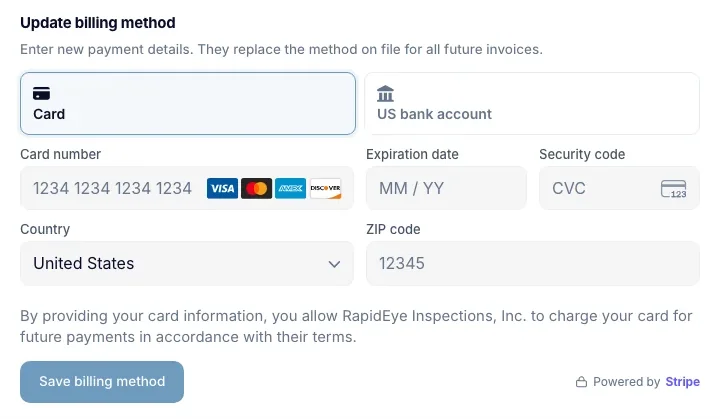
- Open Settings, then Billing.Update billing method shows the method on file, for example Current: Visa ending 4242, expires 08/26.
- Enter a new card, Google Pay or US bank account.The new method replaces the old one for all future invoices.
- Press Save billing method.You see Billing method updated. A bank account can take a few days to confirm: Bank account saved. Bank payments can take a few days to confirm.
If your account is billed through a parent company, the section says Billing for this workspace is handled by that company, and there is nothing to change here. For invoices or questions about your bill, email support@rapideyeinspections.com.
3.2A payment did not go through
If a payment fails, owners and admins see a banner across the app: Your last payment didn’t go through. Please update your billing method. Press Update billing method on the banner to open Settings, Billing, and save a new method. The banner goes away once payments are working again.
4Integrations: your PMS and Slack
Integrations lists the systems your workspace connects to: your property management system (PMS), under its own name, and Slack. Each has its own page, for example /settings/workspace/integrations/breezeway or /settings/workspace/integrations/slack. These settings apply to everyone in the workspace.
On the Slack page you connect or disconnect Slack, and copy an install link for a Slack admin who has no RapidEye login. Which channel reports go to is chosen in Report delivery. Slack and email notifications covers both.
The rest of this section covers your PMS page, which shows whether the connection is healthy and what RapidEye does with your tasks.
Who can do this: everyone can see the page, check the connection, and follow the steps to fix it. Only owners and admins can change the workspace, the task settings or an API key; the page shows You can change these or View only.
Sections 4.1 to 4.4 cover the page with a health card and task settings, shown below. Other platforms get a shorter page, covered in 4.5.
No task names: every Cleaning task, 212 in the last 30 days
Matches 9 of 31 Inspection tasks in the last 30 days
Off
4.1Connection health
The first card says how the connection is doing, and when it was last checked. RapidEye checks every hour; press the reload icon next to it to check now.
| Title | What it means and what to do |
|---|---|
| Connected as Supervisor in … | All good. The line under it says when the newest task synced. |
| We're reconnecting on our end | A problem on our side. Nothing for you to do. |
| Connected as …. We need Supervisor. | RapidEye can read some tasks but cannot write results back. Change its role (see 4.2). |
| Connected as …, but not in … | RapidEye cannot see some of the departments you asked it to handle. Add them (see 4.2). |
| RapidEye can no longer see your Breezeway | RapidEye was removed as a person from your workspace. Add it back (see 4.2). |
| We can't find "…" in Breezeway | The workspace name does not match. Check it (see 4.3). |
| Waiting for RapidEye to confirm your workspace | Our team is confirming a workspace name you entered, usually within one business day. Nothing syncs until then. |
| Not connected to Breezeway yet | Add RapidEye as a person in your ops software, then enter your workspace name (see 4.3). |
4.2Fixing the connection
RapidEye works inside your ops software as a team member named Rapid Eye, with the role Supervisor and all departments. Supervisor is the lowest role that can see every task and write results back. When the health card shows a problem, it lists the exact steps. In short:
- Wrong role: in your ops software, open Manage users, choose Rapid Eye, set Role to Supervisor, and save.
- Missing departments: in the same place, tick the departments the card names (or all of them) under Departments, and save.
- Removed: add a person with the email support@rapideyeinspections.com, name Rapid Eye, as a Team member with the role Supervisor and all departments. The card has a Copy button for the address, and screenshots under Prefer pictures? Show screenshots.
Only an admin of your ops software can add people or change roles there. If that is not you, send them the steps. Then press the reload icon to check again.
4.3Your workspace name
The workspace card holds your company name exactly as your ops software shows it under Company settings. To change it, an owner or admin types the new name and presses Save.
If your email is one of that workspace's users, it connects straight away: Connected to …. Our team has been told. Otherwise our team checks it first, usually within one business day, and RapidEye keeps using the old workspace until then.
4.4Which tasks RapidEye handles
Two cards control what RapidEye does with your tasks. Each has an on/off switch and the departments Cleaning, Inspection and Maintenance.
- Video inspection adds a RapidEye recording link to matching tasks, so cleaners record an inspection.
- Photo inspection reviews the photos cleaners attach to matching tasks.
- Turn the card on and tick the departments it should cover.Under each department, a line counts the matching tasks, for example No task names: every Cleaning task, 212 in the last 30 days.
- To cover only some tasks in a department, type part of a task's name in + task name and press Enter. Add as many as you need; the cross on a name removes it.The line changes to Matches 9 of 31 Inspection tasks in the last 30 days, so you can see what you are about to cover.
- Changes to these controls save automatically.
With both cards off, RapidEye stops reading new tasks for your account, so nothing new is analyzed or linked. Everything so far stays in your reports, findings and dashboard, and your settings are kept for when you turn either back on.
4.5Other platforms
For other platforms, the page shows which platform and workspace you are connected to.
- If it has an API key field (Replace API key once a key is saved), an owner or admin can paste a new key there to replace the saved one, then press Save changes. Leave it blank to keep the current key. Members see only the key's last four characters.
- If it has Recording item placement, an owner or admin chooses where the RapidEye recording step sits in your task checklists: After the first item, Before the last item or At the end. It applies to your whole account.
For platforms our team set up for you, there is nothing to change here. Email support@rapideyeinspections.com if something looks wrong.
5Messages you might see
| Message | What to do |
|---|---|
| Passwords do not match. | Type the same new password in both fields. |
| Password must be at least 6 characters. | Add characters until the password is at least 6 long. |
| That password has appeared in a known data breach, so it cannot be used. Choose a different one. | Pick a password you have not used on any other site. |
| Save did not apply | The message goes on to say your session may have expired. Sign out, sign in again, and make the change again. |
| Billing method saved, but your bank declined the charge. Try a different card, or contact your bank. | Save a different card, or ask your bank why it declined. |
| Your billing method was not saved. Please try again. | Enter the details again. If it keeps failing, email support@rapideyeinspections.com. |
| No Breezeway workspace with that name has added RapidEye. | Check the spelling under Company settings in your ops software, and that RapidEye was added as a person. Nothing was changed. |
| That Breezeway workspace is already connected to another RapidEye account | Email support@rapideyeinspections.com and we sort it out. |
| Too many workspace changes in a short time. Wait ten minutes and try again. | Wait ten minutes, then save the name again. |
| That key did not work, so we kept your previous one. | Check the key in your platform's settings and paste it again. |
| Only owners and admins can change these. | Ask an owner or admin, or ask them to make you an admin. |
| Could not load your PMS connection. Refresh, or contact support if it persists. | Reload the page. If it keeps happening, email support@rapideyeinspections.com. |